Every file next to the record it belongs to

Attach files to quotes, orders, delivery notes, invoices, customers and products. Drag and drop, write each description in its row; PDFs and images open in the browser, and files are stored in the cloud.

Included from Pro. Details

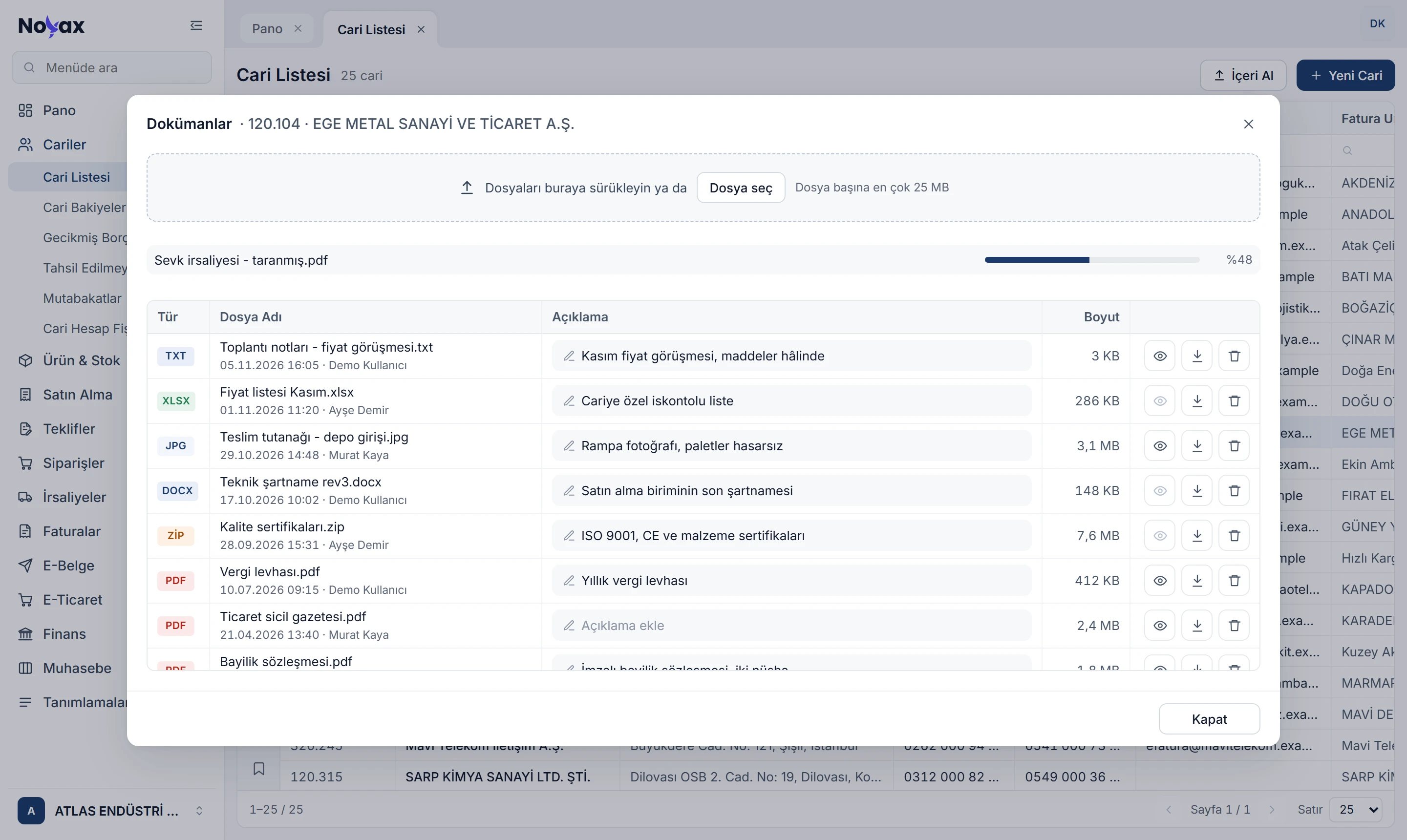
A customer’s Documents window in Noyax: the drop area, a PDF being uploaded and files with colour-coded type badges; each with upload date, uploader, an in-row description, size and view, download and delete buttons

Try it with your own file

Drag a file from your computer onto the invoice below, or try the sample files. It joins the list with its type, size and uploader; a file over the limit is rejected before it is added.

Documents 2

Sales invoice · ATL2026000001172 · EGE METAL SANAYİ VE TİCARET A.Ş.

    Type File name Description Size Delete
    PDF Customer order form.pdf19/11/2026 09:12 · Ayşe Demir 820 KB
    JPG Delivery report.jpg21/11/2026 12:29 · Murat Kaya 2.4 MB

    Right-click, open Documents

    In the quote, order, delivery note, invoice, customer and product lists, right-click a record and choose Documents. The window title shows the record’s number and customer.

    • On quotes, orders, delivery notes and invoices it sits right below Print.
    • Records whose e-document was sent, that were posted to accounting or approved still take documents; the record itself does not change.
    • A record with documents cannot be deleted; you are asked to delete its documents first.
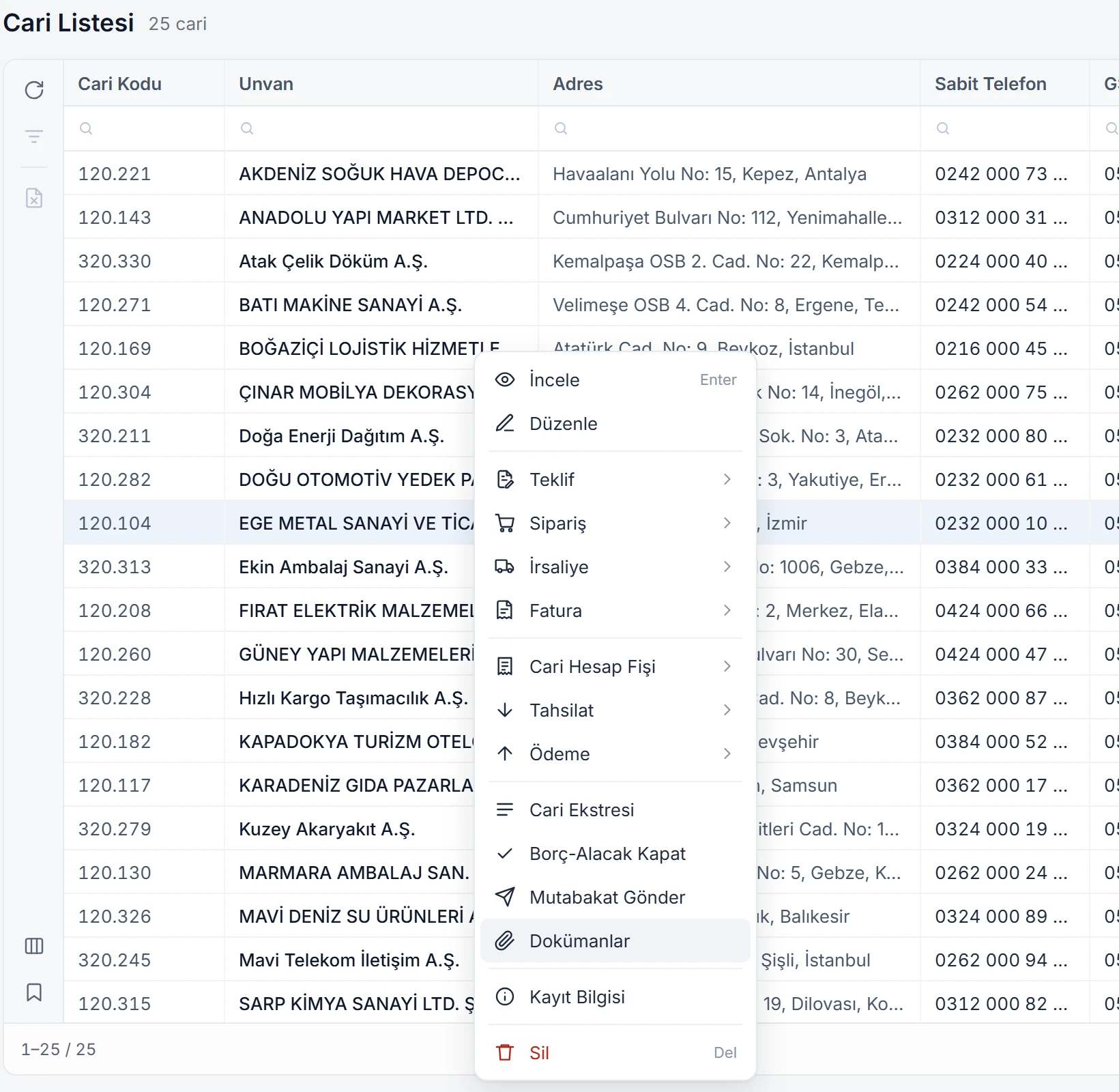
    Right-click menu in the customer list: documents, vouchers, customer statement, reconciliation and Documents Enlarge image

    Drag, drop and let them upload in turn

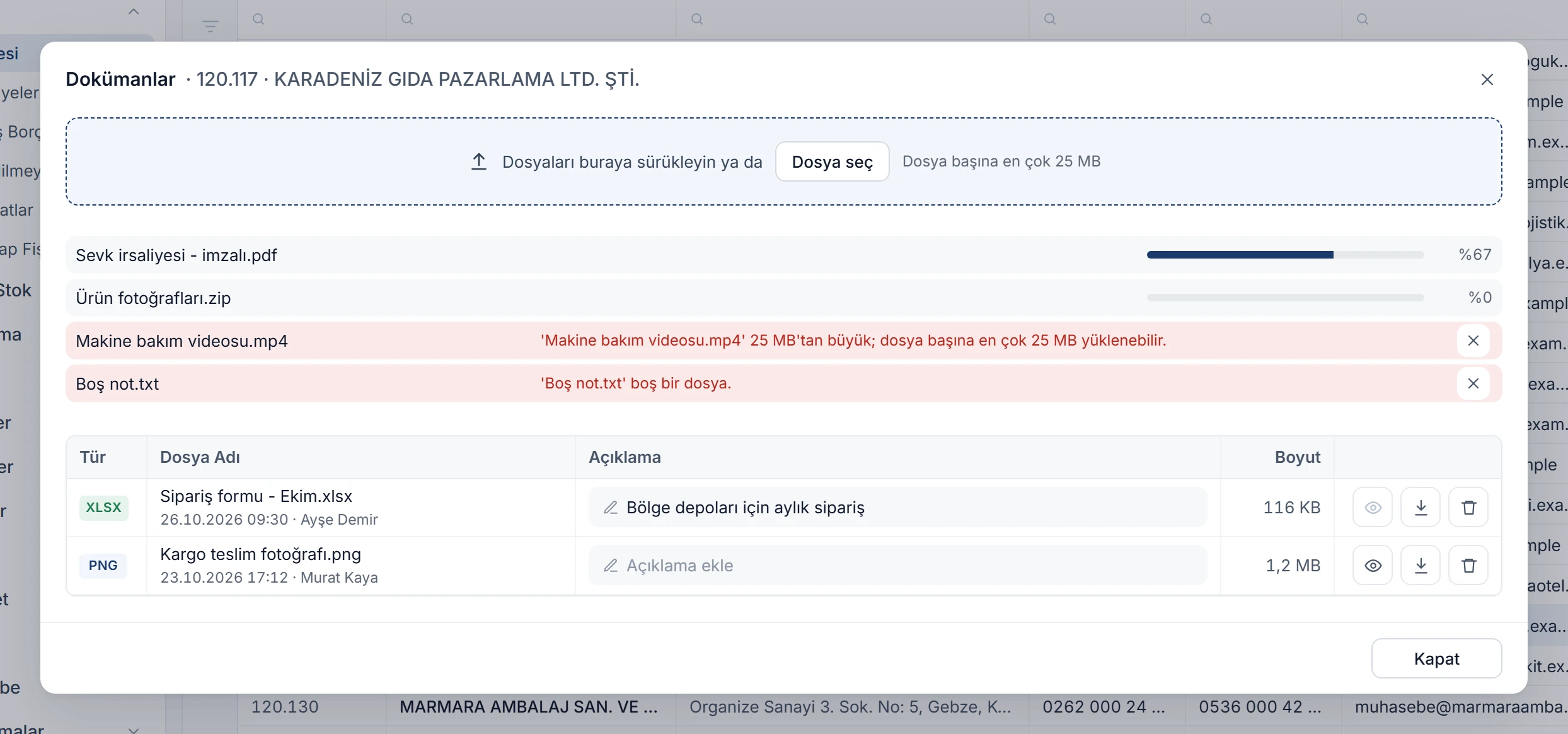
    Drop several files at once; each one uploads in turn with its progress. Uploading does not wait for you to save the record.

    • Up to 25 MB per file.
    • An empty file or one over the limit is listed with the reason and not uploaded.
    • A file dropped by mistake while the window is open does not open in the browser.
    Uploading in the Documents window: a PDF at 94 percent, an archive waiting its turn; a video over 25 MB and an empty file rejected with their reasons Enlarge image

    Write the description in its row

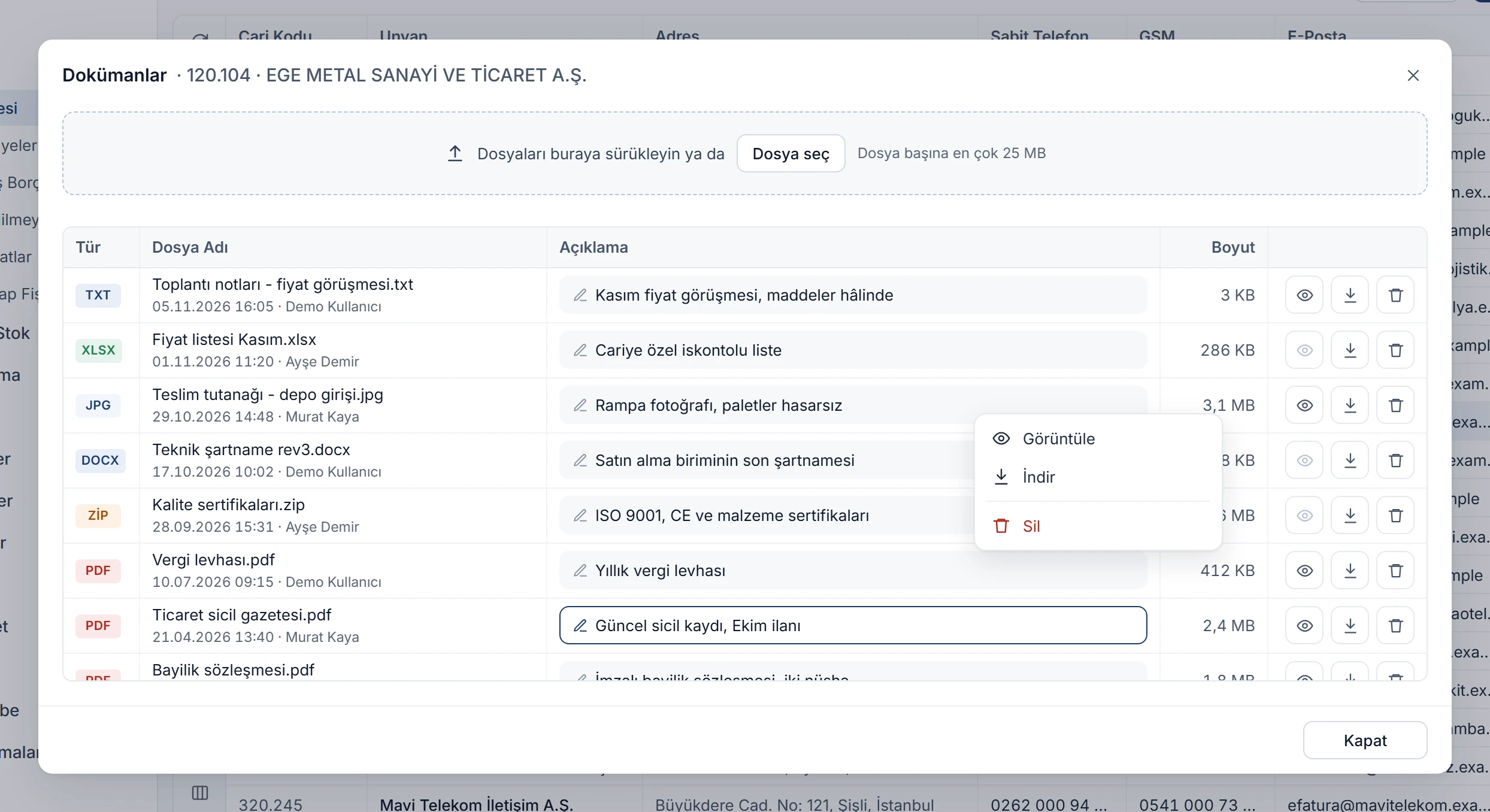
    Each file’s description is typed into the box in its row; no extra window opens. It is saved when you leave the box or press Enter; Esc undoes what you typed.

    • The upload date and uploader appear under each file.
    • PDF, image and text files open in a new tab; others download.
    • View, Download and Delete are on the right-click menu too.
    Documents window: a file’s description being typed in its row, another file’s right-click menu with View, Download and Delete Enlarge image

    Rules protect your files

    Deleting asks for confirmation, and the file is removed from storage permanently. Files that can run scripts (such as HTML or SVG) never open in the browser; they only download.

    • If a file is larger than 25 MB

      'Machine maintenance video.mp4' is larger than 25 MB; you can upload up to 25 MB per file.

    • If a record with documents is being deleted

      This record has 3 documents; first delete them via right-click › Documents.

    • When a document is deleted

      'Tax certificate.pdf' will be deleted; the file is also removed from storage permanently.

    • For a type the browser cannot open

      This file type cannot be opened in the browser; download it.

    More document management features

    Six record types
    Attach files to quotes, orders, delivery notes, invoices, customers and products.
    Colour-coded type badges
    PDF red, Excel green, Word blue, images violet, archives orange; spot a file’s type at a glance.
    Stored in the cloud
    Files are kept in cloud storage in a place reserved for your company and the record; open them wherever you have internet.
    No orphaned files
    The file and its record are written together; if the record cannot be written, the file is deleted too.
    Safe opening
    Only PDFs, images and text open in the browser; files that can run scripts only download.
    Click the name
    Click a file’s name to open it in the browser or download it to your computer.

    Keep files with the record they belong to.

    Files pile up over time, and when they sit in different folders on one computer, finding the right one gets hard. In Noyax every file is attached to its record.

    1. Find the record

      Right-click a quote, invoice, customer or product in its list.

    2. Drop the files

      Drag them into the Documents window or add them with Choose files.

    3. Describe them

      Write what each file is in its row so your team can find it.

    Bring your documents together.

    Try it free for 14 days. No credit card needed.